Shadowrocket
App ID 932747118
Developer: Shadow Launch Technology Limited. Check the full name in the developer information on the product page; don’t rely only on whether the app title includes Shadowrocket.
A paid app, available as a one-time purchase exclusively on the App Store. Check your store account first, verify the developer, official icon, and app ID, then confirm the payment.
The App Store listing shows the current price. Buying the app ≠ buying proxy service; bring your own subscription or server details.
01 / STORE
This app is not available in the mainland China store. If Shadowrocket doesn’t appear in search results, first check the country or region associated with your Apple ID. Don’t assume the device is unsupported just because you can’t find it. The App Store’s available apps depend primarily on the account used for Media & Purchases. Your device language, current location, and account storefront are separate settings.
The button on this page links to Shadowrocket’s App Store product page. Opening a storefront page in your browser only shows information for that storefront; it does not switch your Apple ID to that store. Once you continue to the App Store, purchase availability, currency, and payment methods depend on your account’s actual region and the prompts shown by the store.
Before buying, check which account is currently signed in to the App Store. The account used for iCloud may differ from the one used for Media & Purchases. When checking your purchase history or restoring the app on a new device, use the account that actually made the purchase—not just the account name shown at the top of your device.
Changing your region may affect your account balance, active subscriptions, Family Sharing settings, and valid local payment details. These steps only point to the system setting; they do not guarantee that your account is eligible to change regions. If you encounter a restriction, follow the reason and instructions shown in your account. Don’t overlook other purchases or subscriptions you still use just to complete this purchase.
Three things to check before buyingYour account region must show the product, your device must meet the compatibility requirements, and your payment method must be available. If anything is unclear, pause and check the App Store listing instead of repeatedly confirming payment.
02 / VERIFY
The app name helps you find a candidate; the developer, official icon, and app ID confirm its identity. Don’t choose what to buy based only on search ranking or the nickname “Little Rocket.”
App ID 932747118
Developer: Shadow Launch Technology Limited. Check the full name in the developer information on the product page; don’t rely only on whether the app title includes Shadowrocket.
First, check the developer. Search results may include apps with the same or a similar name, keywords, or artwork. Open the product details and confirm the developer is Shadow Launch Technology Limited. If the name doesn’t match, a similar title alone is not enough to identify it as the app described here.
Next, check the icon. The official icon is a rocket outlined in blue and purple on a white background, matching the one shown on this page. The icon is only one clue; it doesn’t replace checking the developer and app ID. Similar colors or shapes are not enough to confirm an app’s identity.
Finally, check the app ID. The id932747118 in the product link corresponds to app ID 932747118. Check the digits at the end rather than relying on the product name in the URL. Once all three details match, review the price, compatibility, and payment confirmation.
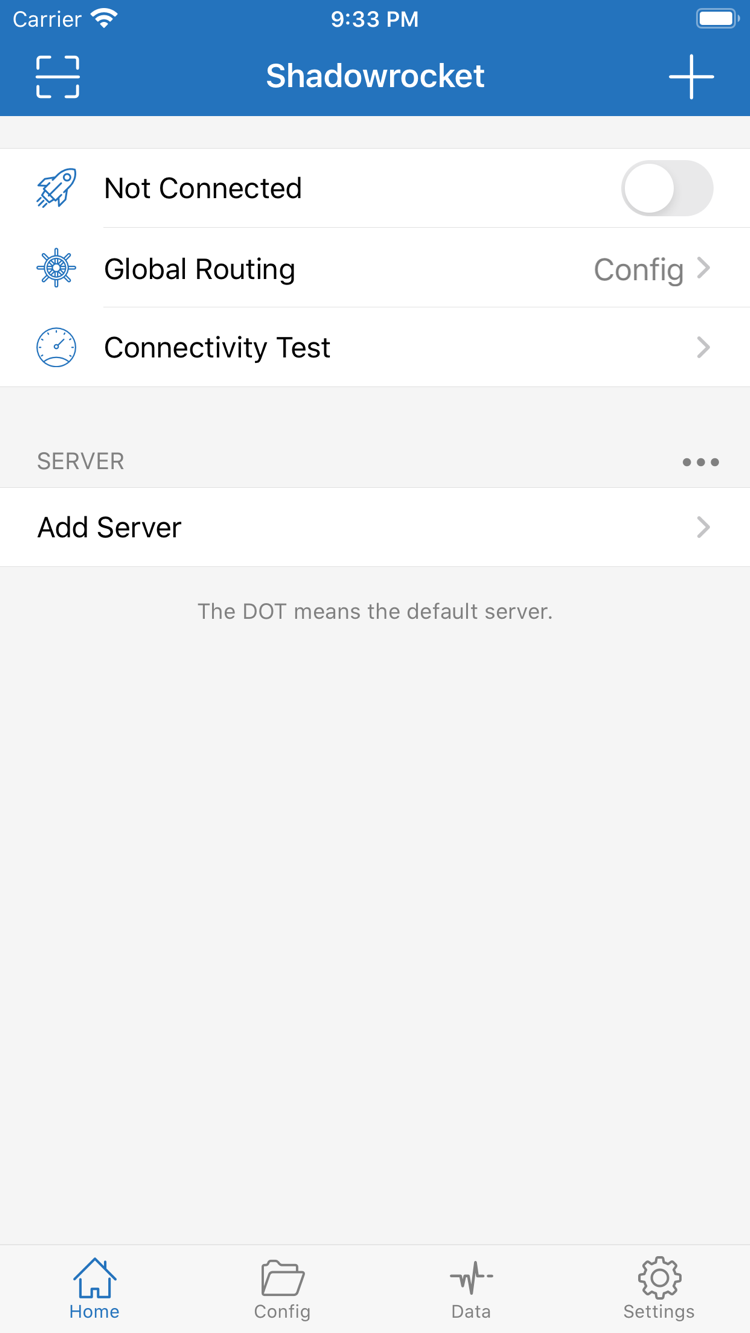
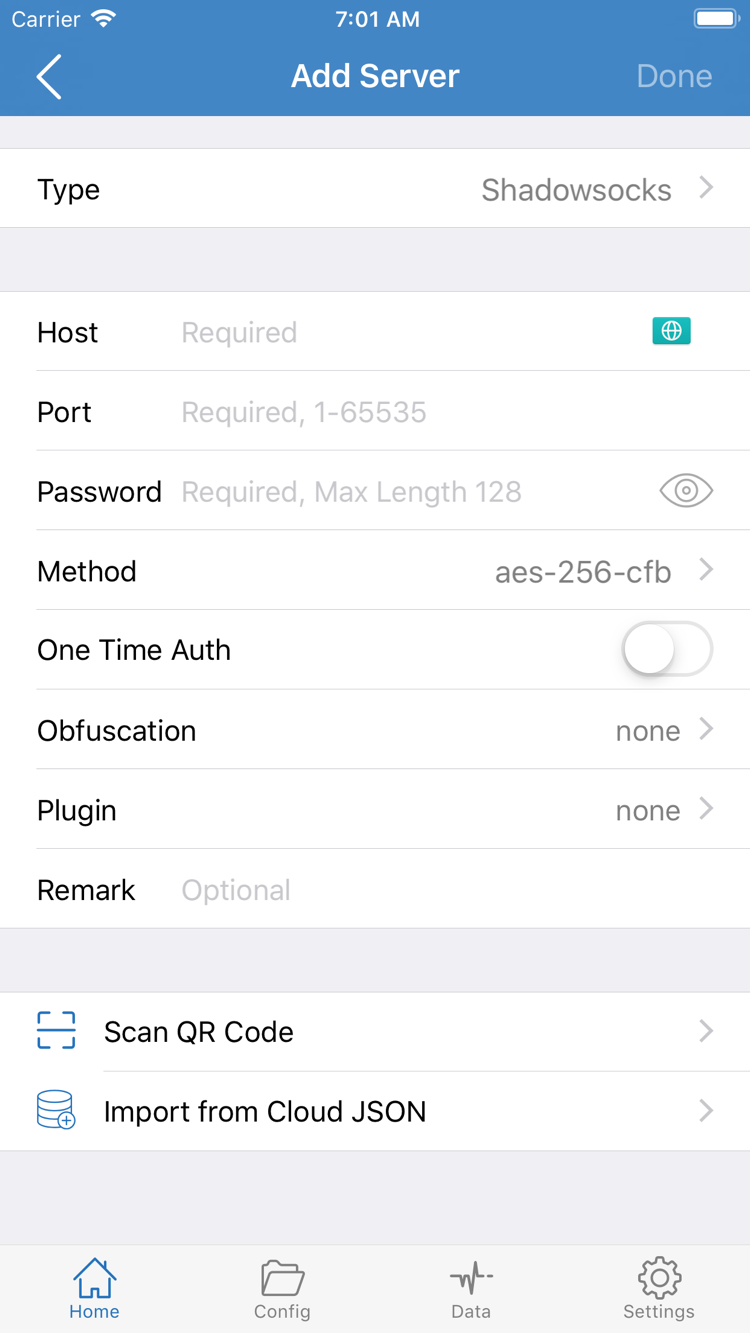
The two images alongside this text are official English-interface screenshots uploaded by the developer to the App Store. They show Home and Add Server. Screenshots alone cannot confirm an app’s identity; the layout may differ with device size, display language, or app updates. If the list is empty when you first open the app, that doesn’t mean you have the wrong app—server details must be imported by the user.
After verifying the app, continue with the setup guide. To learn what each rule-file entry means, see the rules reference. Don’t treat example content in screenshots as connection details you already have.
03 / IPHONE
After tapping the App Store button on your iPhone, review compatibility and price on the product page, then confirm the purchase as prompted. Always check the App Store listing for system requirements; don’t rely on an older tutorial screenshot to determine whether your current device is supported. If the store says the device is incompatible, resolve the compatibility issue before trying to pay again.
Once the purchase is complete and the app appears on your device, open Shadowrocket. The first time you visit Home, get familiar with the main controls: Add Server is for entering existing server details, Global Routing selects how traffic is handled, and the connection toggle starts or stops the connection. Buying the app gives you the right to use the client; it does not automatically add your subscription or server details.
The first time you turn on the connection, the system may ask for permission to add a VPN configuration. This prompt allows the app to set up the corresponding network configuration on your device and may require your device passcode or biometric authentication. Continue only if the prompt follows an action you just took to connect. Granting permission does not confirm that your server details are correct or that you can access a particular website.
For the first check, follow this order: import your existing subscription or server details, verify the required fields, choose a suitable Global Routing mode, then connect and test the requests you need. Avoid changing several settings at once; otherwise, it’s hard to tell whether a connection issue comes from the import, mode, or rules. See the setup guide for the steps.
Permission, purchase, and connectivity are separate statesThe App Store purchase history confirms app ownership; system VPN permission confirms that the configuration was allowed; connectivity also depends on your existing server, network, and rules. Check each separately when troubleshooting instead of treating one as proof that everything is set up.
04 / IPAD
Shadowrocket works across iPhone and iPad. After purchasing with an Apple ID, you can redownload it from the App Store’s purchased items on a compatible iPad. You don’t need to buy it separately for these two device types. Before you start, make sure Media & Purchases on the iPad uses the account that made the original purchase. Signing in to the same iCloud account alone does not confirm ownership of the App Store purchase.
The iPad’s screen width and portrait or landscape orientation may change how lists and details are arranged. Use interface labels such as Home, Add Server, Config, and Settings to find the right features. Buttons don’t have to be in the same places as in iPhone screenshots; identify the page and fields first, then follow the relevant steps. Refer to the App Store listing for system requirements.
Being able to redownload the app does not mean your configuration has also appeared on another device. If your previous list is missing on iPad, first check whether you’ve restored or synced your own configuration, then import your existing subscription if needed. When entering server details manually, make sure fields such as Type, Host, and Port match the original information. Don’t guess passwords or protocol settings from example screenshots.
The compatibility section of the same App Store listing also includes Mac, Apple TV, and Apple Vision. These devices are available only through the App Store as well. Check the listing for supported devices, universal purchase availability, and system requirements. Don’t assume the purchase terms for iPhone and iPad apply to every device.
Before using another device, read the compatibility details on its App Store page and check your account and purchase status. If you see a different price or an unavailable message, first check the actual store region, device compatibility, and account history. Don’t skip these checks just because both devices are made by Apple.
05 / RESTORE
Your purchase is linked to the Apple ID used to buy the app, not to the old device. If you get a new iPhone, add an iPad, or reinstall the app after deleting it, look for Shadowrocket in your App Store purchase history first. Redownloading it with the original account usually won’t cost anything extra. Check your history before paying again.
If search results still show a price, check whether you’re signed in to a different account and whether the original purchase was completed. Verify against the account’s purchase history rather than relying on a memory that you installed it before. A family member having used the app or its icon appearing on an old device does not mean the current account owns the purchase.
The Purchased list may look different if your region has changed, a purchase is hidden, or your account has an issue. Note the store message and check the relevant account settings. If you can verify the purchase but still can’t redownload the app, use the purchase support option in your App Store account. Family Sharing availability and requirements depend on the App Store listing and your family account; don’t assume it applies to every account.
Restoring the app and restoring its configuration are separate steps. The app purchase history does not store every subscription, local server field, or rule change for you. Before changing devices, check your own backup or sync status. Afterward, restore your existing data before updating subscriptions to avoid a cluttered list from manually adding entries while old data is being restored.
If a price still appears, check your account firstConfirm the account used for Media & Purchases, the original purchase history, and your current region. Don’t repeatedly confirm payment before checking. After the app reappears, verify separately that your configuration has been restored.
06 / PRICE
Shadowrocket is a paid, closed-source commercial app sold as a one-time purchase, with no monthly app purchase fee. The US reference price is $2.99; other storefronts show local currency. The price, taxes, and purchase terms at checkout are determined by the App Store page. The reference price here does not replace the system’s payment confirmation.
The app purchase ≠ proxy serviceThe one-time app purchase ≠ proxy service. This site does not provide, sell, or recommend proxies or subscriptions. You’ll need to bring your own subscription or server details.
Purchasing gives you the right to use the client, including configuring existing servers, managing rules, and using related features. Whether a server connects, a subscription updates, or connection details remain valid are separate matters. If Home has no usable entries after purchase, follow the guide to import your own details instead of buying the app again.
App updates are delivered through the App Store. Use your device’s App Store settings to manage automatic updates or check for updates manually. Refer to the product page for update history. This page does not list fixed version details, which could be mistaken for the current store status. Back up important configuration before making changes; purchase history is not a substitute for a configuration backup.
For app payment issues, start with your App Store purchase history. For problems after importing details, check your subscription or server fields. If traffic doesn’t follow the expected rules, check Global Routing and rule order. Keeping these issues separate helps avoid repeatedly changing account purchases, connection settings, and routing configuration all at once.
PURCHASE NOTES
Check the exact App Store message first, then troubleshoot your account, device compatibility, and purchase history in that order.
This app is not available in the mainland China store. The country or region associated with your Apple ID determines which storefront you see. Check the account region under Media & Purchases, then review the product page. A storefront path in a web link does not mean your account has switched regions; purchase availability depends on the store shown for your account.
Note the exact App Store message, then check your account region, payment status, device compatibility, available storage, and network connection. Refer to the App Store listing for system requirements. If you’ve already paid, check your purchase history and purchased items before trying to buy again.
Sign in with the Apple ID used for the original purchase, find Shadowrocket under your App Store account’s purchased items, and download it again. You usually won’t need to pay again. If a price still appears, check your purchase history, account, and store region. After restoring the app, restore your own configuration, subscription, or server details as well.
The purchase works across iPhone and iPad. After buying with the same Apple ID, you can redownload the app on a compatible iPad. Refer to the App Store listing for system requirements. Your purchase history is separate from subscriptions, servers, and configuration on the device; restore or import those yourself.
The compatibility section of the same App Store listing includes Mac, Apple TV, and Apple Vision. Check the listing for supported devices, system requirements, and whether the purchase is universal. These devices are also available only through the App Store.
This guide keeps interface labels in English, including Home, Add Server, Config, and Settings, followed by their explanations. Find the matching label in the app, then follow the steps. Differences in screenshot language or layout alone do not determine whether an app is genuine; verify the developer, official icon, and app ID.