App Store verifiedOfficial Guide

Shadowrocket
Setup and Routing Rules

A rule-based proxy client for iPhone and iPad. Use routing rules to choose how connections are handled. The app is a one-time purchase on the App Store; you’ll need an existing subscription or server details to get started.

  • Shadowsocks
  • WireGuard
  • Rule
  • Config
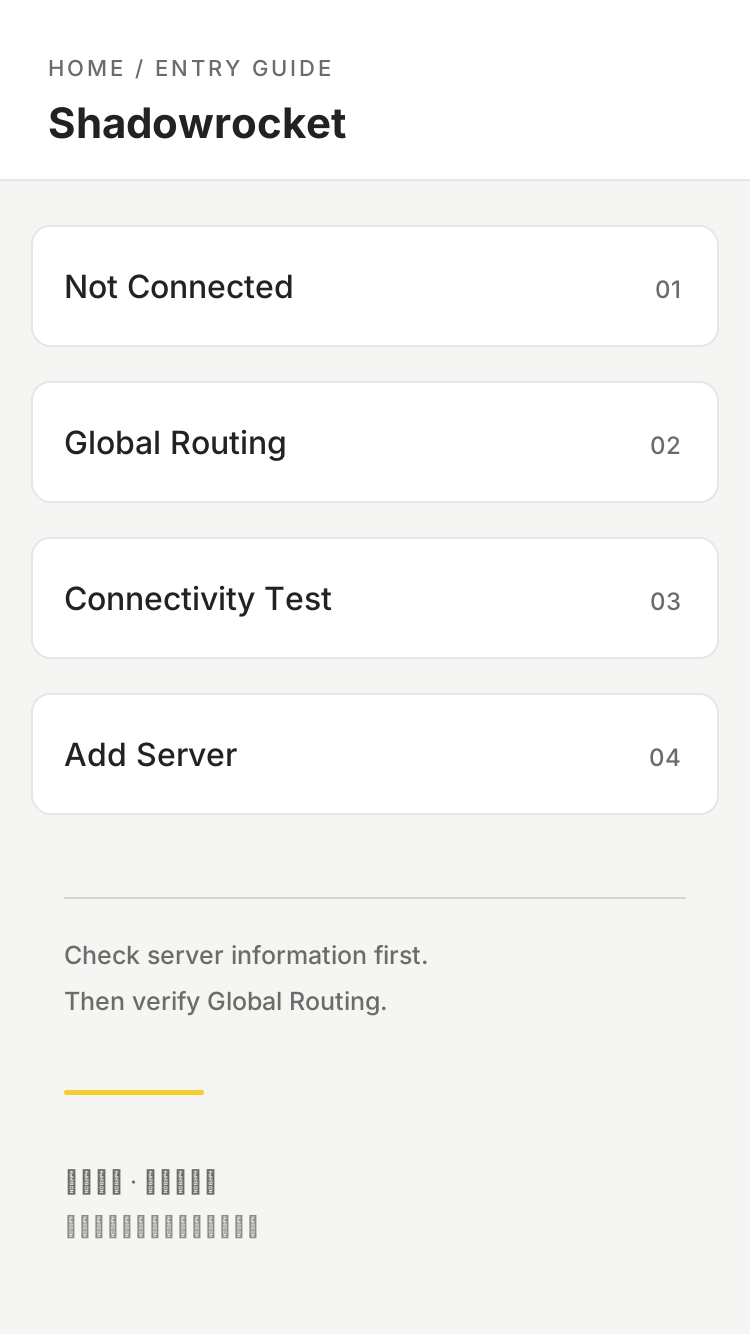
Home screen overview showing Not Connected, Global Routing, Connectivity Test, and Add Server; not an app screenshot
Home screen overview: check the server first, then review Global Routing.

Connection and Configuration Overview

Treat configuration like a document to review: choose a connection mode first, then check rules, subscriptions, and diagnostic results. Interface labels stay in English so you can find them in the app.

Global Routing: Choose a Connection Mode

Global Routing on Home sets how traffic is handled overall. Config applies the rules in the active configuration; Proxy sends proxy-eligible traffic through the selected proxy; Direct connects without a proxy. To route traffic differently by site, select Config, then check the active configuration and its final rule. You can temporarily switch modes to compare results while troubleshooting, but don’t treat a single test as a permanent setting. After switching back to Config, revisit the site and check which rule and policy matched. This helps distinguish a mode change from a subscription problem.

[Rule]
DOMAIN-SUFFIX,example.com,PROXY
FINAL,DIRECT

This example shows rule syntax only; example.com is not a proxy service.

Learn about connection modes →

Devices and How to Get the App

Shadowrocket is available only on Apple platforms, exclusively through the App Store. Check the store listing first, then install using the Apple Account used for the purchase. See the App Store listing for system requirements.

iPhone

After purchasing from the App Store, open the app and prepare your existing subscription or server details. The first time you connect, the system may ask to add a VPN configuration. Review and confirm the prompt, then return to Home to check the status. Installing the app doesn’t create a usable server automatically; import and select your existing details before testing the connection.

iPhone guide →

iPad

The same purchase works on iPhone and iPad. Sign in with the purchasing account to find the app in your App Store purchases. The larger display can make configuration easier to review, but connection modes and rule order still need to be checked individually. Purchase records and configuration data are managed separately. After reinstalling, check your subscriptions, selected server, and active configuration file.

iPad guide →

Prices, compatibility, and purchase terms shown in the store are subject to the current App Store listing. If a purchase is missing from your history, check the purchasing account before buying again.

On the App StoreGet Shadowrocket
See how to get the app →
Before You Buy

App Verification and Purchase Details

Shadowrocket is a closed-source commercial app. This is the official website and guide. Use the App Store product information to verify, purchase, and update the app; don’t identify it by name similarity or search ranking.

Check the developer, icon, and app ID together

On the App Store product page, first check that the app is named Shadowrocket, then confirm the developer is Shadow Launch Technology Limited. Compare the store icon with the official icon in this site’s header, and confirm the product link’s app ID is 932747118, shown as id932747118 in the URL. Search results may include apps with similar names; the nickname “Little Rocket” alone doesn’t verify an app’s identity. Check all three details together.

The app icon helps you recognize the app; the developer name and app ID confirm the specific product. If any of the three details don’t match the search result, return to this page’s instructions and open the product page again. Don’t assume that the price, compatibility, or purchase history of another similarly named app applies to Shadowrocket. A shared search term doesn’t mean it’s the same product.

App Store listings depend on your account’s storefront

App Store content depends on the storefront associated with your Apple Account, so the product page’s currency, taxes, and purchase terms may vary. If you can’t find the app in search, check which purchasing account is signed in and whether the product page appears in that storefront. A single search result can’t tell you whether your device’s configuration is the problem. Manage account details, payment methods, and region settings through Apple’s account interface; this guide only explains what to check.

See the App Store listing for system requirements. Before purchasing, expand the store’s compatibility details and check that your device meets the requirements. If you see a cloud icon, a price button, or an Open button, consider your account’s purchase history when deciding what to do next. The store account may differ from the account used for other sync features on your device. When troubleshooting a purchase, start with the account that actually made it.

The One-Time Purchase Covers the App

The U.S. storefront lists the price at about $2.99 as a one-time purchase. The final amount is shown at App Store checkout; other storefronts display local currency. The purchase gives you access to the app, which uses existing server details to connect and handle requests according to your configuration. You’ll need to provide your own server address, protocol parameters, and subscription content. Buying the app and having valid server details are separate matters.

App purchase ≠ proxy service plan

This site does not provide, sell, or recommend servers or subscriptions. The import instructions assume you already have your own subscription or server details. Paying for the app does not include a proxy service.

If you’ve purchased the app but don’t see a server on Home, follow the guide to import your existing details. You don’t need to buy the app again just to make an entry appear. If an entry is present but won’t connect, check that the original details are valid, the protocol parameters are complete, and your network is working. Separating purchase issues from connection issues avoids repeated changes to your App Store account and configuration without a clear result.

Restore Your Purchase, Then Your Configuration

If you switch devices or reinstall after deleting the app, sign in to the App Store with the original purchasing account and find your purchases, then download Shadowrocket again. If the page still shows a price, check the account and purchase history, and make sure you’ve found the same app. See the App Store listing for details on Family Sharing eligibility and other purchase conditions. Don’t assume what appears on one device applies to every account.

Downloading the app again restores the app; it doesn’t mean local rules and subscriptions have been restored. Check the server list and current selection in Home, and the active file in Config. If you use iCloud sync, check the sync settings and the content that appears. If you use a manual backup, restore it using the notes you made. Test a specific destination first, then restore your personal rules gradually to avoid importing duplicates.

Manage App Updates and Configuration Changes Separately

Update the app through the App Store and check its update history on the store page. App updates, subscription updates, and local configuration edits are three different operations: the first changes the app, the second refreshes content from a source, and the third changes rules and settings. If a connection fails, note which operation you performed most recently and follow the relevant troubleshooting steps. Don’t lump every change under “update failed.”

Keep a restorable copy before editing a configuration, and note the connection mode and test results beforehand. Change one rule or parameter at a time, then test before deciding whether to keep it. Backups, screenshots, and diagnostic details may contain personal domains, server addresses, or credentials; check for sensitive information before sharing. For specific keywords, consult the routing rules reference rather than overwriting a configuration that already works.

Read the full app verification steps →
Configuration and Usage Notes

Instructions are organized around individual tasks: identify the issue first, then check the relevant menu and settings. Articles about existing subscriptions cover local management only and don’t assess their sources.

Purchase & Restore

Restore a Shadowrocket purchase after reinstalling or switching devices: redownload it from your purchases using the original account

The one-time purchase is tied to the original purchasing account. Check the account, find the app in your purchases, and download it again—in that order. Purchase history and configuration data are restored separately. If the page still shows a price, check the account and storefront first.

Read the purchase restoration steps →
Routing Rules

Route only selected websites through a proxy: use DOMAIN-SUFFIX with FINAL,DIRECT

Use DOMAIN-SUFFIX and DOMAIN-KEYWORD to list the domains that should use PROXY, then send all other requests to FINAL,DIRECT. See how the position of exception rules affects the outcome—even the same rule can produce different results in a different position.

Read how to route selected websites →
Subscriptions & Config

Manage multiple subscriptions in Shadowrocket: group, sort, and remove duplicate servers

If you have multiple subscriptions, identify each group by its source first, then organize the order and remove outdated entries. Learn to distinguish manually added entries from subscription-generated ones, and why a locally deleted duplicate may return when its source updates.

Read how to manage multiple subscriptions →
View all articles →

First-Time Setup Checklist

First determine whether the issue is with a purchase, import, connection, or rule, then follow the relevant steps. Expand a question below to read the answer.

I imported a subscription. Why can’t I access sites yet?

Importing adds content to the list; it doesn’t establish a connection. First check that a working server is selected, then review Global Routing and the connection status on Home. If the system asks for permission to add a VPN configuration, confirm it first. If the problem persists, check the source content, server parameters, and current network separately.

Check the connection after importing, step by step →

Where should I start if only selected websites should use a proxy?

Set Global Routing to Config first, then check Rule in the active configuration. Put rules for your target domains before FINAL; other traffic follows the final policy. Changing the server list alone won’t do this: selecting a server and deciding which requests use a proxy are separate steps.

Check the order of DOMAIN-SUFFIX and FINAL →

Does a Connectivity Test result mean my rules are correct?

A test result only shows connectivity under its specific test conditions; it doesn’t verify the rules for a particular request. Visit the domain you want to check and confirm the current mode, configuration file, and matched policy. Traffic in Data is only a clue—it doesn’t prove that the target page used the expected route.

Check connection verification and troubleshoot failures →

After switching devices, should I restore subscriptions or rules first?

Restore the app and check your existing server details first. Once the basic connection works, review and enable the rules file. Watch for duplicate content from sync and manual imports, then test a specific website. Keeping a separate backup before switching devices makes it easier to verify your settings than rebuilding them from memory.

See the recommended order for configuration backup and migration →